jeecg 2.4.6 如何生成验证码

验证码是怎么来的?

前端地址:

src\views\user\LoginAccount.vue

前台请求

1
2
3
4
5
6
7
{
"success": true,
"message": "操作成功!",
"code": 0,
"result": "data:image/jpg;base64,xxxx..",
"timestamp": 1585981360953
}

获取验证码前端

1
2
3
4
5
6
7
8
9
10
11
12
13
14
15
16
handleChangeCheckCode(){
// 缓存当前时间戳
this.currdatetime = new Date().getTime();
this.model.inputCode = ''
getAction(`/sys/randomImage/${this.currdatetime}`).then(res=>{
if(res.success){
this.randCodeImage = res.result
this.requestCodeSuccess=true
}else{
this.$message.error(res.message)
this.requestCodeSuccess=false
}
}).catch(()=>{
this.requestCodeSuccess=false
})
}

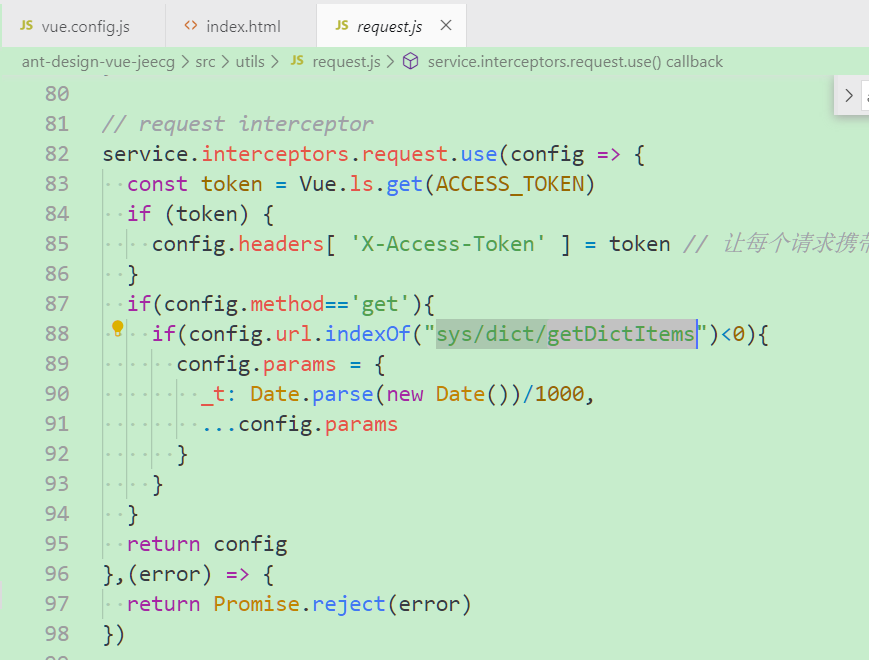
我们得知,/sys/randomImages后面跟的是当前时间戳,且前台会把当前时间戳记录下来;至于_t,我猜是为了防止请求缓存,携带的随机数

由下面图片得到验证(地址:src\utils\request.js)

request_js

验证码后台

LoginController_java_randomImage

文件地址:

org.jeecg.modules.system.controller.LoginController#randomImage

1
2
3
4
5
6
7
8
9
String code = RandomUtil.randomString(BASE_CHECK_CODES,4);
String lowerCaseCode = code.toLowerCase();
String realKey = MD5Util.MD5Encode(lowerCaseCode+key,"utf-8");
//存redis
redisUtil.set(realKey,lowerCaseCode,60);
//获取验证码照片
String base64 = RandImageUtil.generate(code);
res.setSuccess(true);
res.setResult(base64);

验证码照片生成RandImageUtil.generate

org.jeecg.modules.system.util.RandImageUtil#generate(java.lang.String)

1
2
//RandImageUtil主要是这句产生随机验证码图片
BufferedImage image = getImageBuffer(resultCode);

getImageBuffer方法如下

1
2
3
4
5
6
7
8
9
10
11
12
13
14
15
16
17
18
19
20
21
22
23
24
25
26
27
28
29
30
31
32
33
34
35
36
37
38
39
40
41
private static BufferedImage getImageBuffer(String resultCode){
// 在内存中创建图象
final BufferedImage image = new BufferedImage(width, height, BufferedImage.TYPE_INT_RGB);
// 获取图形上下文
final Graphics2D graphics = (Graphics2D) image.getGraphics();
// 设定背景颜色
graphics.setColor(Color.WHITE); // ---1
// 填充矩形
graphics.fillRect(0, 0, width, height);
// 设定边框颜色
// graphics.setColor(getRandColor(100, 200)); // ---2
graphics.drawRect(0, 0, width - 1, height - 1);

final Random random = new Random();
// 随机产生干扰线,使图象中的认证码不易被其它程序探测到
for (int i = 0; i < count; i++) {
graphics.setColor(getRandColor(150, 200)); // ---3

final int x = random.nextInt(width - lineWidth - 1) + 1; // 保证画在边框之内
final int y = random.nextInt(height - lineWidth - 1) + 1;
final int xl = random.nextInt(lineWidth);
final int yl = random.nextInt(lineWidth);
graphics.drawLine(x, y, x + xl, y + yl);
}
// 取随机产生的认证码
for (int i = 0; i < resultCode.length(); i++) {
// 将认证码显示到图象中,调用函数出来的颜色相同,可能是因为种子太接近,所以只能直接生成
// graphics.setColor(new Color(20 + random.nextInt(130), 20 + random
// .nextInt(130), 20 + random.nextInt(130)));
// 设置字体颜色
graphics.setColor(Color.BLACK);
// 设置字体样式
// graphics.setFont(new Font("Arial Black", Font.ITALIC, 18));
graphics.setFont(new Font("Times New Roman", Font.BOLD, 24));
// 设置字符,字符间距,上边距
graphics.drawString(String.valueOf(resultCode.charAt(i)), (23 * i) + 8, 26);
}
// 图象生效
graphics.dispose();
return image;
}

内网穿透工具 frp 介绍

1.下载

去它的release页面下载对应系统的版本

2.配置与安装

服务端使用frps文件,客户端使用frpc文件,frps和frpc分别对应服务端和客户端的你主程序,.ini则分别是他们的对应配置文件,主要的配置见参考链接1,参考链接2,任选其1即可.

3.后台运行

3.1 nohup

使用nohup可以让你的程序在此次连接结束后依旧运行,远程服务器的时候可以使用
例如

1
nohup ./frpc -c ./frpc.ini

3.2 以服务的方式运行

3.2.1 支持systemctl的方式

新版本解压后可以看到有systemd这个文件夹,里面是已经写好的服务文件,这里以frpc.service为例配置为客户端开机重启的服务

  • 首先

你需要把frpc.service文件中的ExecStartExecReload替换你自己的程序路径

  • 其次

frpc.service文件放到系统服务对应的位置,ubuntu 16.04放在/lib/systemd/system/下,CentOS 7放在/usr/lib/systemd/system/

  • 最后
1
2
3
4
5
6
7
8
9
10
# 使用service或者systemctl启动服务
service frpc start|reload|stop|status
systemctl frpc start|reload|stop|status

# 开机时启动一个服务
systemctl enabl frpc
# 开机时禁用一个服务
systemctl disable frpc
#查看服务是否开机启动
systemctl is-enabled frpc

3.2.2 支持services方式

如果你的系统版本比较老,比如RedHat 6.8,这类系统不支持systemctl启动服务,那么你就需要手写一个脚本来启动服务,并把这个服务放在/etc/init.d目录下,
参考脚本,以frpc为例,这个脚本是我以sshd为基础改的:

1
2
3
4
5
6
7
8
9
10
11
12
13
14
15
16
17
18
19
20
21
22
23
24
25
26
27
28
29
30
31
32
33
34
35
36
37
38
39
40
41
42
43
44
45
46
47
48
49
50
51
52
53
54
55
56
57
58
59
60
61
62
63
64
65
66
67
#!/bin/bash
#chkconfig 2345 99 01
# frpc
#
# description: frpc is a niwangchuantou tool
#
# processname: frpc
# config: /etc/frp/frpc.ini

### BEGIN INIT INFO
# Provides: frpc
# Required-Start: $all
# Required-Stop: $all
# Default-Start: 2 3 4 5
# Default-Stop: 0 6
# Short-Description: Start up the frpc server daemon
# Description: frpc is a neiwangchuantou tool
### END INIT INFO

# source function library
. /etc/rc.d/init.d/functions

RETVAL=0
prog="frpc"

# Some functions to make the below more readable
FRPC=/usr/bin/frpc
INI_FILE=/etc/frp/frpc.ini
start()
{
$FRPC -c $INI_FILE
}

stop()
{
killall $prog 2>/dev/null
}

reload()
{
$FRPC reload -c $INI_FILE
}

restart() {
stop
start
}

case "$1" in
start)
start &
;;
stop)
stop &
;;
restart)
restart &
;;
reload)
reload &
;;
*)
echo $"Usage: $0 {start|stop|restart|reload}"
RETVAL=2
esac
exit $RETVAL

配置

1
2
3
4
赋予脚本执行权限
chmod +x frpc.service
使用前加入chkconfig管理列表
chkconfig --add frpc

使用:

1
2
#脚本中已经自动为开机启动
service frpc start|reload|restart|stop

参考链接

frp参考链接

参考1

frp内网穿透

参考2

使用frp实现内网穿透

参考3

Frp后台自动启动的几个方法

参考4

FRP局域网穿透+linux自动监控服务运行

linux 配置服务参考连接

centos6添加系统服务
CentOS6自定义服务控制脚本
Centos7 服务 service 设置命令 systemctl 用法

以下是frp的github ReadMe

英文版
中文版

Ubuntu 20.04 编译安装 nginx 1.20.1

说明

nginx源码下载地址 (nginx/Windows为二进制版本)
这里假设你已经下载了nginx的源码并已解压

安装编译环境

1
2
3
4
5
6
7
8
9
sudo apt-get update
#安装依赖:gcc、g++依赖库
sudo apt-get install build-essential libtool
#安装 pcre依赖库(http://www.pcre.org/)
sudo apt-get install libpcre3 libpcre3-dev
#安装 zlib依赖库(http://www.zlib.net)
sudo apt-get install zlib1g-dev
#安装ssl依赖库
sudo apt-get install openssl

编译安装

1
2
# 使用默认配置安装()
make check && make

nginx建立软链接

1
2
3
4
5
6
# 查找nginx命令地址 无特殊配置,默认为/usr/local/nginx/sbin/nginx
whereis nginx
# 建立软链接
ln -s /usr/local/nginx/sbin/nginx /usr/bin/nginx
# 测试 有正常输出意味着nginx安装完成
nginx -V

参考

将wsl1更新为wsl2

安装wsl时,未注意版本,以为windows默认安装的就是2版本,今天想起配置时才发现安装的是1版本,为了使用docker,所以需要将wsl1更新为wsl2并将已安装的实例转为wsl2

以下为参照windows官方文档的操作Install WSL & update to WSL2

前提

已安装wsl1,且已安装Ubuntu-20.04版本也是wsl1

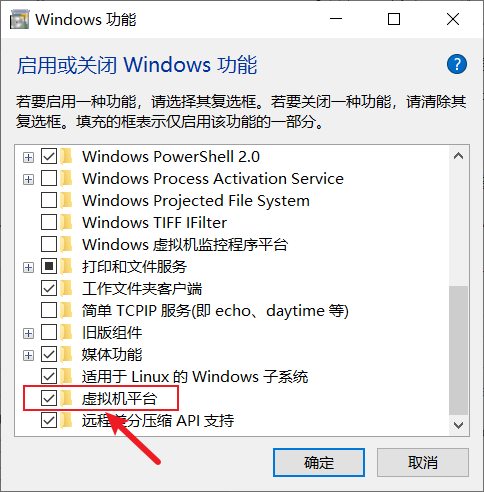
打开虚拟机平台功能

控制面板 > 程序 > 程序和功能 > 启用或关闭Windwos功能 > 允许虚拟机平台功能 > 重启电脑

enable-vm

设置wsl默认版本

1
wsl --set-default-version 2

转化已有实例为wsl2

比如,我的电脑已有实例Ubuntu-20.04

1
wsl --set-version Ubuntu-20.04 2

等待转化完毕后执行命令wsl -l -v就可以看到Ubuntu-20.04实例当前版本已经改为2版本

wsl2与host主机互通

在我的电脑上使用的是wsl2,每次重启,它的本地局域网ip是会改变的,虽然hostwsl之间可以使用localhost访问,但是当碰到端口映射等需要具体ip时,使用localhost就不是很方便了
所以我希望wsl的ip可以固定下来
以下假设希望设置host主机地址为10.88.88.1,设置wsl实例Ubuntu-20.04的ip地址为10.88.88.2

设置host主机wsl虚拟网卡地址

1
2
# 该设置需要管理员权限
netsh interface ip add address "vEthernet (WSL)" 10.88.88.1 255.255.255.0

设置wsl实例ip地址

1
wsl -d Ubuntu-20.04 -u root ip addr add 10.88.88.2/24 broadcast 10.88.88.255 dev eth0 label eth0:1

计划任务

由于以上两个设置系统一旦重启就需要重新配置,所以我们可以将其加入计划任务,开机自动运行即可
需要注意计划任务需要有管理员权限

如何改变Hexo无主题的favicon

找了半天也没发现修改_config.yml里面配置改变默认favicon的方法

操作

把要使用的ico图标命名为favicon.png放在source文件夹下,重启hexo服务器

原理

通过分析发现,hexo generate生成的public文件夹下的index.html引入的是favicon.png,而我们放在source文件夹下的favicon.png会被认为是网站的favicon